CSS Text
Text color
<div class="row">
    <div class="col-4">
        <h4>Text Color</h4>
    </div>
    <div class="col-8" id="textColor">
        Hi my name is Folau. color property is used to set the color of the text
    </div>
</div>
<style>
            #textColor{
                color: blueviolet;
            }
</style>
Text alignment
<div class="row">
    <div class="col-4">
        <h4>Text Alignment</h4>
    </div>
    <div class="col-8" id="textAlignment">
        Hi my name is Folau. text-align property is used to set the horizontal alignment of a text. A text can be left or right aligned, centered, or justified.
    </div>
</div>
<style>
            #textAlignment{
                text-align: center;
            }
</style>
Text decoration
<div class="row">
    <div class="col-4">
        <h4>Text Decoration</h4>
        <div><strong>text-decoration:</strong>  text-decoration-line text-decoration-color text-decoration-style</div>
        <div><strong>text-decoration-line:</strong>  none|underline|overline|line-through|initial|inherit;</div>
        <div><strong>text-decoration-color:</strong>  color|initial|inherit;</div>
        <div><strong>text-decoration-style:</strong>  solid|double|dotted|dashed|wavy|initial|inherit;</div>
    </div>
    <div class="col-8" id="textDecoration">
        Hi my name is Folau. text-decoration property is used to set or remove decorations from text. It is not recommended to underline text that is not a link, as this often confuses the reader.
        <p>This is paragraph 1 overline</p>
        <p>This is paragraph 2 line-through</p>
        <p>This is paragraph 3 underline</p>
        <p>It is not <a>recommended</a>   to underline text that is not a link, as this often confuses the reader.</p>
    </div>
</div>

<style>
            #textDecoration :nth-child(1){
                text-decoration: overline;
            }
            #textDecoration :nth-child(2){
                text-decoration: line-through red;
            }
            #textDecoration :nth-child(3){
                text-decoration:  underline lime wavy;
            }
            #textDecoration :nth-child(4) a{
                text-decoration: none;
            }
</style>
Text transformation
<div class="row">
    <div class="col-4">
        <h4>Text Transformation</h4>
        <div><strong>text-transform:</strong>  none|capitalize|uppercase|lowercase|initial|inherit;</div>
    </div>
    <div class="col-8" id="textTransformation">
        Hi my name is Folau. text-transform property is used to specify uppercase and lowercase letters in a text.
    </div>
</div>
        <style>
            #textTransformation{
                text-transform: capitalize;
            }

        </style>
Text spacing indentation
<div class="row">
    <div class="col-4">
        <h4>Text Spacing indentation</h4>
    </div>
    <div class="col-8" id="textIndent">
        Hi my name is Folau. text-indent property is used to specify the indentation of the first line of a text.
    </div>
</div>
        <style>
            #textIndent{
                text-indent: 30px;
            }
        </style>
Text spacing letter space
<div class="row">
    <div class="col-4">
        <h4>Text Spacing letter spacing</h4>
    </div>
    <div class="col-8" id="textLetterSpacing">
        Hi my name is Folau. letter-spacing property is used to specify the space between the characters in a text.
    </div>
</div>
         <style>
            #textLetterSpacing{
                letter-spacing: 5px;
            }
        </style>
Text spacing line height
<div class="row">
    <div class="col-4">
        <h4>Text Spacing line height</h4>
    </div>
    <div class="col-8" id="textLineHeight">
        Hi my name is Folau. line-height property is used to specify the space between lines. line-height property is used to specify the space between lines. line-height property is used to specify the space between lines.
    </div>
</div>
       <style>
            #textLineHeight{
                line-height: 2;
            }
        </style>
Text spacing word space
<div class="row">
    <div class="col-4">
        <h4>Text Spacing word spacing</h4>
    </div>
    <div class="col-8" id="textWordSpacing">
        Hi my name is Folau. word-spacing property is used to specify the space between the words in a text.
    </div>
</div>
        <style>
            #textWordSpacing{
                word-spacing: 5px;
            }
        </style>
Text spacing white space
<div class="row">
    <div class="col-4">
        <h4>Text Spacing white space</h4>
        <div>white-space: normal|nowrap|pre|pre-line|pre-wrap|initial|inherit;</div>
        <a href="https://www.w3schools.com/cssref/pr_text_white-space.asp">reference</a>
    </div>
    <div class="col-8" id="textWhiteSpacing">
        Hi my name is Folau. white-space property specifies how white-space inside an element is handled. white-space property specifies how white-space inside an element is handled. white-space property specifies how white-space inside an element is handled. white-space property specifies how white-space inside an element is handled.
    </div>
</div>
        <style>
            #textWhiteSpacing{
                white-space: pre-line;
            }
        </style>
Text shadow
<div class="row">
    <div class="col-4">
        <h4>Text Shadow</h4>
        <div>text-shadow: h-shadow v-shadow blur-radius color|none|initial|inherit;</div>
    </div>
    <div class="col-8" id="textShadow">
        Hi my name is Folau. text-shadow property adds shadow to text.
    </div>
</div>
        <style>
            #textShadow{
               text-shadow: 2px 2px 8px #FF0000;
            }
        </style>
CSS Colors
Background Color
You can set the background color for HTML elements.
<div class="row">
    <div class="col-3">
        <h4>Background Color</h4>
    </div>
    <div class="col-9" id="backgroundColor">
        Hi my name is Folau
    </div>
</div>
<style>
  #backgroundColor{
       background-color: grey;
  }
</style>
Text color
You can set the color of text.
<div class="row">
    <div class="col-3">
        <h4>Text Color</h4>
    </div>
    <div class="col-9" id="textColor">
        Hi my name is Folau
    </div>
</div>
            <style>
            #textColor{
                color: green;
            }
            </style>
Border color
<div class="row">
    <div class="col-3">
        <h4>Border Color</h4>
    </div>
    <div class="col-9" id="borderColor">
        Hi my name is Folau
    </div>
</div>
            <style>
            #borderColor{
                border:2px solid violet;
            }
            </style>
RGB color
rgb(red, green, blue)
Each parameter (red, green, and blue) defines the intensity of the color between 0 and 255.
For example, rgb(255, 0, 0) is displayed as red, because red is set to its highest value (255) and the others are set to 0. To display black, set all color parameters to 0, like this: rgb(0, 0, 0). To display white, set all color parameters to 255, like this: rgb(255, 255, 255).
<div class="row">
    <div class="col-3">
        <h4>RGB Color</h4>
    </div>
    <div class="col-9" id="rgbColor">
        Hi my name is Folau
    </div>
</div>
            <style>
            #rgbColor{
                background-color: rgb(255, 99, 71);
            }
            </style>
Hex color
#rrggbb
Where rr (red), gg (green) and bb (blue) are hexadecimal values between 00 and ff (same as decimal 0-255).
For example, #ff0000 is displayed as red, because red is set to its highest value (ff) and the others are set to the lowest value (00).
<div class="row">
    <div class="col-3">
        <h4>Hex Color</h4>
    </div>
    <div class="col-9" id="hexColor">
        Hi my name is Folau
    </div>
</div>
        <style>
            #hexColor{
                background-color: #ff6347;
            }
        </style>
HSL color
hsl(hue, saturation, lightness)
Hue is a degree on the color wheel from 0 to 360. 0 is red, 120 is green, and 240 is blue.
Saturation is a percentage value, 0% means a shade of gray, and 100% is the full color. Saturation can be described as the intensity of a color. 100% is pure color, no shades of gray. 50% is 50% gray, but you can still see the color. 0% is completely gray, you can no longer see the color.
Lightness is also a percentage, 0% is black, 50% is neither light or dark, 100% is white. The lightness of a color can be described as how much light you want to give the color, where 0% means no light (black), 50% means 50% light (neither dark nor light) 100% means full lightness (white).
<div class="row">
    <div class="col-3">
        <h4>HSL Color</h4>
    </div>
    <div class="col-9" id="hslColor">
        Hi my name is Folau
    </div>
</div>
         <style>
            #hslColor{
                background-color: hsl(9, 100%, 64%);
            }
        </style>
CSS Selectors
A CSS selector is the part of a CSS rule that describes what elements in a document the rule will match. The matching elements will have the rule’s specified style applied to them.
There are 5 categories of selectors:
- Simple selectors (select elements based on name, id, class)
- Combinator selectors (select elements based on a specific relationship between them)
- Pseudo-class selectors (select elements based on a certain state)
- Pseudo-elements selectors (select and style a part of an element)
- Attribute selectors (select elements based on an attribute or attribute value)
Simple selectors
id selector
<div id="logo">
    Hello ID
</div>

<style>
    #logo{
        color: blue;
    }
</style>
class selector
<div class="name">
    Laulau
</div>
<div class="name">
    Kinga
</div>
<style>
    .name{
        color: red;
    }
    /*or*/
    div.name{
        color: red;
    }
</style>
element selector
<p>
    Laulau
</p>
<p>
    Kinga
</p>
<style>
    p{
        color: green;
    }
</style>
Universal(*) selector
universal selector (*) selects all HTML elements on the page.
<style>
    * {
        text-align: center;
        color: black;
    }
</style>
Group selector
group selectors minimize how much code you have to write. To group selectors, separate each selector with a comma.
h3, h4, p, div {
  text-align: left;
  color: black;
}
Combinator selectors
A combinator is something that explains the relationship between the selectors.
Descendant selector (space)
descendant selector matches all elements that are descendants of a specified element.
<ul>
    <li>
      <div>List 1</div>
      <ul>
        <li>Name A</li>
        <li>Name B</li>
      </ul>
    </li>
    <li>
      <div>List 2</div>
      <ul>
        <li>Name A</li>
        <li>Name B</li>
      </ul>
    </li>
</ul>

<style>
    li {
        list-style-type: disc;
    }

    li li {
        list-style-type: circle;
    }
</style>
Child selector
child selector selects all elements that are the children of a specified element.
         div > div > p{
             background-color: red;
         }
<div class="col-9">
     <div>
         <p>
             Laulau
         </p>
         <p>
             Kinga
         </p>
     </div>
 </div>
Adjacent sibling selector(+)
Adjacent sibling selector matches the second element only if it immediately follows the first element, and both are children of the same parent element. This only applies to the first element found.
<div class="col-9">
    <img src="superman.jpeg" alt="superman" />
    <span>superman</span>
</div>

<style>
   img + span {
      font-weight: bold;
   }
</style>
General sibling selector(~)
general sibling selector selects all elements that are siblings of a specified element.
<p>Here is a paragraph.</p>
<code>Here is some code.</code>
<span>And this is a red span!</span>
<code>More code...</code>
<h2> that's all. </h2>
<span>And yet again this is a red span!</span>

<style>
    /* general sibling */
    p ~ span {
        color: purple;
        font-weight: bold;
    }
</style>
Pseudo-class selector
A pseudo-class is used to define a special state of an element.
Examples:
- Style an element when a user mouses over it
- Style visited and unvisited links differently
- Style an element when it gets focus
<div class="row">
    <div class="col-3">
        Pseudo-classes Selector<br>
    </div>
    <div class="col-9">
        <a>Hover here <span>man</span></a>
    </div>
</div>

        <style>
            /*  pseudo-classes selector */
            a > span:hover {
                background-color: blue;
            }
        </style>
Pseudo-class selector :first-child
:first-child represents the first element among a group of sibling elements.
<style>
    /* first-child <p> under parent with id first-child */
    #first-child p:first-child {
        color: green;
        background-color: blue;
        font-weight: bold;
    }
</style>
Pseudo-class selector :nth-child(n)
:nth-child(n) matches elements based on their position in a group of siblings.
<style>
    /* second child under parent with id nth-child
    #nth-child p:nth-child(2){
        color: blue;
    }
</style>
Pseudo-element selector ::before
::before pseudo-element can be used to insert some content before the content of an element.
<div class="row">
    <div class="col-3">
        Pseudo-element Selector<br>
        <strong>::before</strong> pseudo-element can be used to insert some content before the content of an element.<br>
    </div>
    <div class="col-9" id="before">
        <p>The first paragraph.</p>
        <p>The second paragraph.</p>
    </div>
</div>
        <style>
            #before p::before{
                content: "->";
            }
        </style>
Pseudo-element selector ::after
::after pseudo-element can be used to insert some content after the content of an element.
<div class="row">
    <div class="col-3">
        Pseudo-element Selector<br>
        <strong>::after</strong> pseudo-element can be used to insert some content after the content of an element.<br>
    </div>
    <div class="col-9" id="after">
        <p>The first paragraph.</p>
        <p>The second paragraph.</p>
    </div>
</div>
        <style>
            /* add <- in front of <p> */
            #after p::before{
                content: "<-";
            }
        </style>
Attribute
attribute selector is used to select elements with a specified attribute.
<div class="row">
    <div class="col-3">
        Attribute Selector<br>
        <strong>[attribute]</strong> selector is used to select elements with a specified attribute.<br>
    </div>
    <div class="col-9" id="attribute">
        <p title="first-para">The first paragraph.</p>
        <p title="second-para">The second paragraph.</p>
    </div>
</div>
        <style>
            #attribute p[title]{
                background-color: purple;
            }
        </style>
Attribute value
attribute value selector is used to select elements with a specified attribute and value.
<div class="row">
    <div class="col-3">
        Attribute Selector<br>
        <strong>[attribute="value"]</strong> selector is used to select elements with a specified attribute.<br>
    </div>
    <div class="col-9" id="attributeValue">
        <p title="first-para">The first paragraph.</p>
        <p title="second-para">The second paragraph.</p>
    </div>
</div>
         <style>
            #attributeValue p[title="first-para"]{
                color: red;
            }
        </style>
CSS Box Model
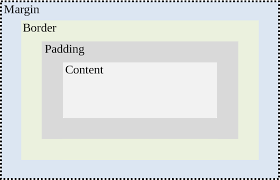
All HTML elements can be considered as boxes. In CSS, the term “box model” is used when talking about design and layout.
The CSS box model is essentially a box that wraps around every HTML element. It consists of: margins, borders, padding, and the actual content. The image below illustrates the box model:
- Content – The content of the box, where text and images appear
- Padding – Clears an area around the content. The padding is transparent
- Border – A border that goes around the padding and content
- Margin – Clears an area outside the border. The margin is transparent
Backend – What to learn in a framework?
On this post we are focusing on what you need to know about and have experience with in a framework. Specifically, we are assuming that this framework is used as the backend framework and we have a frontend application built with react or angular that consumes it.
#1 Master Language Fundamentals
Data types
Conditional(if) statements
Iteration(loop)
Class
Method
Data structure(List, Set, Map)
OOP
File
etc..
#2 Configuration
How to create a project
How to include dependencies like packages your project will need
How to write/update a configuration file with what your project needs like aws, database, 3rd party API keys, etc
How to profile your configuration so your project can run in different environments(local, dev, prod) with the right configurations
How to structure your code so that it’s easy to work with
#3 MVC
Controller (POST, PUT, GET, DELETE, Upload, Download file requests)
View (JSON or HTML)
Model
Service
#4 Database CRUD Operations
ORM
JdbcTemplate
Connection threadpool configurations
SQL queries
#5 Security
Authentication
Authorization
#6 Dependency Injection
Dependency Object Container
Dependency Object Lifecycle
How to create a dependency object
How to use a dependency object
#7 Testing
Unit tests with a mock framework
Integration tests
#8 Cache
Redis
#9 Consumer APIs
Consume a 3rd party API like Stripe
#10 Deployment
Deploy project to a live environment like aws or heroku
Optionals
You can add the following as you go. Some of these are one time setups and some are devop stuff. Depending on your situation you might have to set these up in case of a small or startup company or they might have been in place already or a devop team is taking care of them.
# OAuth2
Login with 3rd parties like Google or Facebook
# API endpoint documentation
Swagger with Springboot
# Docker
# AWS Webservices
# Elasticsearch
# Batch Jobs